How to create a Listserv login, change your email address, and join APA-hosted Listservs
October 27, 2021
This information is prepared by the APA Division Engagement Office staff. You are free to share it with others.
Do your members still receive messages from your division’s Listservs or have they accidentally lost touch? In a series of lessons, we’ll review basic know-how for APA-hosted Listservs, served up in easy-to-digest bites. First, let’s focus on keeping your members subscribed. (In the next issue, we’ll review some basics for sending Listserv messages).
Did you know that the email address you use in your APA membership account is not synchronized to your Listserv subscriptions? This means that whenever you change your email address for your membership (which you can do through the Log in or MyAPAopens in new window at www.apa.org), you’ll still need to take a separate step to update any APA-hosted Listserv subscriptions.
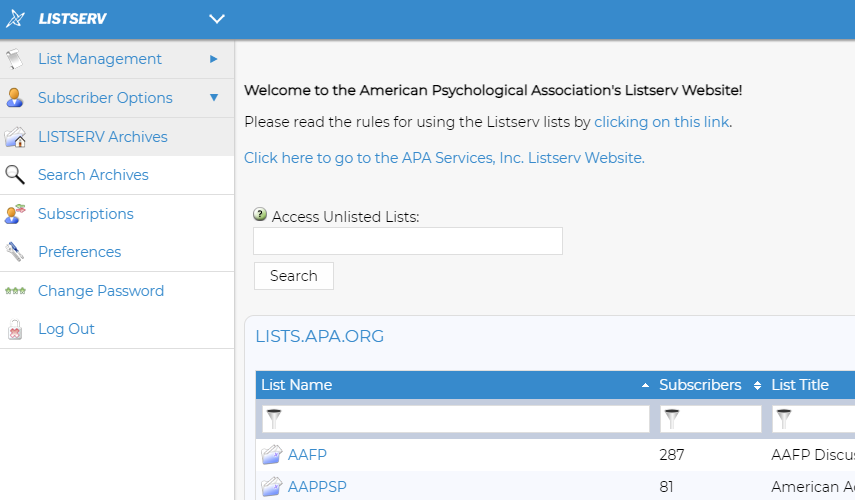
APA has an electronic portal you can use to easily manage your APA-hosted Listserv preferences: the APA Listserv websiteopens in new window. (See Fig. 1.)
Figure 1
How to set up a login account and password. Anyone can obtain an account on any Listserv server. Your account identification is always your email address, and your password merely confirms that you are the owner of that email address.
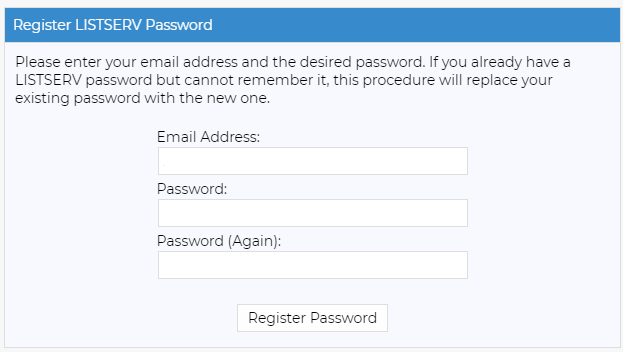
Enter your email address and the password you wish to use in the fields provided (see Fig. 2).
Press the "Register Password" button.
Listserv then sends a message to the email address you entered. You must respond to the email message as directed in the message. If you do not respond, the password will not be set.
Figure 2
This guarantees that you cannot register a password for an email address that does not exist or belongs to someone else. Privileges associated with each account are tied to the email address. This can be used to manage change of address, ask to join Listservs, and find helpful resources such as APA Listserv rules and Listserv archives, which are accessible only by list subscribers. Anyone trying to view the archives is required to login, and if the email address used for logging in is not subscribed to the list, access will not be permitted. Thus, registering an account does not grant you any special privileges on the Listserv server; it merely allows you to use the Listserv Web interface to perform the tasks that have been granted to your email address by the site administrator or the list owner.
How to change your email address. First create a login using your old email address so that the system can locate your current subscriptions (see above). Use that login to change your email address as follows:
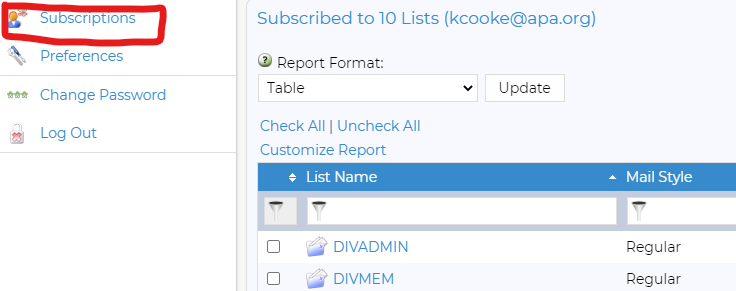
After you have created your identity and logged in on APA’s Listserv website, you can click Subscriptions on the navigation menu on the left to see which Listservs you have already joined. (See Fig.3.)
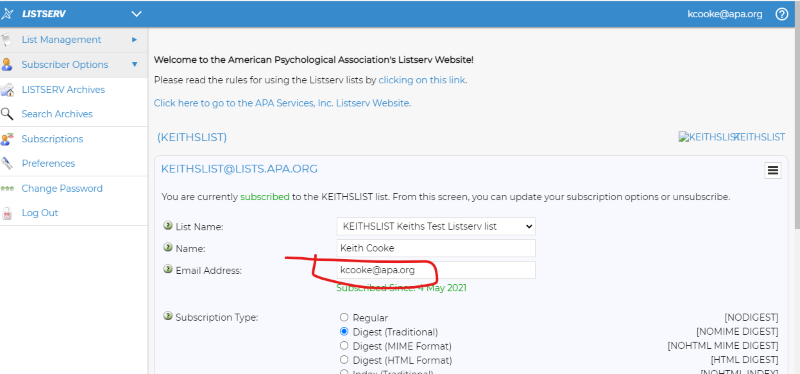
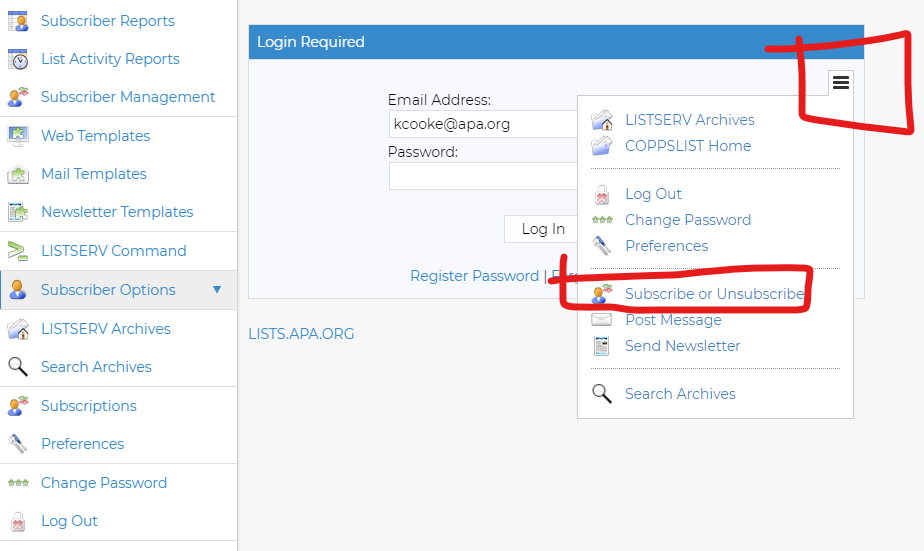
Click on one of the listserv names and then the stack of three horizontal lines on the right side and then “Subscribe or Unsubscribe” to get the screen that shows what email address is subscribed to that listserv.
Type over your old email address with your new email address and click the “Update Settings” button at the bottom of the screen. (See Fig. 4.)
Finally, log out and create a fresh login using your new email address. You’ll operate from that login when you need to make any further changes.
Figure 3
Figure 4
How to join additional Listservs. Although you might have been automatically added to your division’s general announcement Listserv when you first joined the division, for most other division Listservs you must proactively “opt in” by requesting to join.
Log in under your preferred email account.
Click on your desired Listserv from the alphabetically arranged list. (Most division Listserv names start with DIV and the division number, such as DIV38.)
A login box will appear. Click on the three bars to get the “Subscribe or Unsubscribe” option. (See Fig. 5.)